English

Skoolbo

0

skoolboSkoolbo is a free downloadable program for both Macs and PCs. There are also apps available for IOS and Android devices. Skoolbo is essentially a literacy and numeracy program designed for 4 – 10 year olds to practice their core literacy and numeracy skills. This is done through a 3D world where the progress through this world is determined by students successfully answering questions. The questions focus on the following areas:-

Literacy

  • Phonics
  • Fluency
  • Vocabulary
  • Comprehension
  • Grammar
  • Spelling

Numeracy

  • Number Development
  • Addition
  • Subtraction
  • Number Patterns
  • Time
  • Multiplication
  • Division

Each student is required to sit pre-tests on Reading and Numeracy to work out the difficulty level for the student, this is continually assessed and the difficulty adjusted when needed. Students receive ‘Bo’ coins for answering questions successfully which can be used to purchase rewards such as racing worlds, toys and other items.

Below is a video of Skoolbo in action. 


linkhttp://skoolbo.com

linkSkoolbo iTunes App Store

link

Skoolbo Google Play Store

Pin It

World Education Games

0
FacebookTwitterEvernotePinterestInstapaperRead It LaterBookmark/FavoritesGoogle ReaderShare

worldeducationgames2The World Education Games is a world wide event, where students from around the world compete with each other in a World Maths, Literacy and Science days. Each of the different learning strands uses well known resources such as Mathletics, Spellodrome and IntoScience to power each area. Registered students can practice their skills for free leading up to the event. The competition is also free. There are prizes available as well. Unicef have teamed up with the World Education Games to promote with schools to raise money towards a ‘School in a box’. This program provides all the essentials a teacher would need for their classroom and students in areas of disaster, crisis or poverty.

linkhttp://www.worldeducationgames.com


linkInformation on the ‘School in a box’ fundraiser.


linkTeacher’s Guide

Pin It

Splash

0
FacebookTwitterEvernotePinterestInstapaperRead It LaterBookmark/FavoritesGoogle ReaderShare

abc_splash

Splash is ABC Australia’s new Educational Website that is linked to the National Curriculum. The site is for Teachers, Students and Parents. It contains articles, video, audio and games. The content is separated into three areas Early Primary (Foundation – Year 3), Upper Primary (Years 4 -6) and Secondary (Years 7 – 10). There are four subject areas to choose from English, Maths, Science and History. You can filter your searches by year level, subject and media type. There is a Parent’s area with articles from how to support your child with reading to transitioning from primary to high school. The Teacher’s area contains articles to support teachers with the Digital Age to developing your personal learning network and many more. This website is well set out and easy to use and hopes to be even better as more and more content is added over time. The YouTube clip below explains a bit more about Splash.

linkhttp://splash.abc.net.au/home

Pin It

BoomWriter

0
FacebookTwitterEvernotePinterestInstapaperRead It LaterBookmark/FavoritesGoogle ReaderShare

BoomWriter is a creative writing website. It works by teachers creating a story starter and choosing how many chapters the story will have. Then students continue the story starter and write a chapter of the book. The chapters written by the students are then submitted anonymously and are then voted on. The winning chapter is then added to the story and the process continues until the story is complete. Once the story is complete it can then be published.

You can sign up your school and then encourage students to sign up. It would be nice if they had included a better way to sign up your class from a class list rather than waiting for students to sign up individually. Below is a short YouTube clip explaining a bit more about BoomWriter.

Pin It

NAPLAN 2012

0
FacebookTwitterEvernotePinterestInstapaperRead It LaterBookmark/FavoritesGoogle ReaderShare

With NAPLAN coming up soon teachers will be looking for resources to help students prepare for the NAPLAN tests. Being a teacher of year 3s it will be the first time for these students to see questions presented in the manner they are in the NAPLAN tests. From experience it is important to prepare these students for the format in which the questions will be presented to them. Visiting the official NAPLAN website I discovered that they have now removed past NAPLAN test papers and replaced them with example tests. You can access these example tests by following the link bellow.

http://www.nap.edu.au/NAPLAN/The_tests/index.html

Pin It

spellingcity.com

0
FacebookTwitterEvernotePinterestInstapaperRead It LaterBookmark/FavoritesGoogle ReaderShare

SpellingCity helps students learn their personal spelling word list in a fun way. Students start by typing their list words out. Then students are able to choose from a wide range of ‘free’ activities to learn their set of words. A list of the possible activities are pictured below. There are Premium resources available at a cost. I have found SpellingCity to be a useful extension activity in my spelling lessons.


http://www.spellingcity.com/

Pin It

Alphabetimals

0
FacebookTwitterEvernotePinterestInstapaperRead It LaterBookmark/FavoritesGoogle ReaderShare

Alphabetimals is a great free website Junior Primary teachers could use to introduce a letter of the alphabet in a fun way. Alphabetimals associates a cartoon animal with each letter. You can then click to discover the sound the animal makes or click to have the word spoken to you. Below the alphabet book the site gives you the opportunity to write your name or words using the Alphabetimal’s font. You can then print it or share it in the ways pictured below.

The site also offers free print resources that would be very handy in the classroom for displays, flash cards, or colouring pages. You do although need to ‘like’ the resource on facebook before being able to download it.

http://alphabetimals.com/

Pin It

The Amazing Word Tamer

0
FacebookTwitterEvernotePinterestInstapaperRead It LaterBookmark/FavoritesGoogle ReaderShare

The Amazing Word Tamer is a great tool to develop further your student’s writing talents. Word Tamer is centred around a ‘Funfair’ where you can explore and play around with ideas and hopefully get inspirations that can be included in your stories.

The activities you can expect are….

‘Wild Words’ has you catching random words that come out of the clouds. It then invites you to use these words as inspiration for your writing.

‘Capture a Character’ is where you start developing ideas for your characters attributes. Using the robotic hook, you need to capture the characteristics you want.

‘Prowl Through Plot’ explores what happens to your stories plot when you make changes. Once you complete this activity it gives you a great story starter to base a story on.

‘Snare a Setting’ has you shooting at clown faces to choose your setting. Once you have chosen four words to describe your setting you are then taken to a screen where you can type up your ideas for the setting based on your four words.

‘Grapple with Genre’, looks at what the possibilities are for the writer if you combine different genres. For example a Science Fiction Adventure. Then you are asked to start writing down ideas based on your selections.

Overall ‘The Amazing Word Tamer’ is an inspirational tool for students to develop their writing in detail.

http://www.wordtamer.co.uk/

.

Storyline Online

1
FacebookTwitterEvernotePinterestInstapaperRead It LaterBookmark/FavoritesGoogle ReaderShare

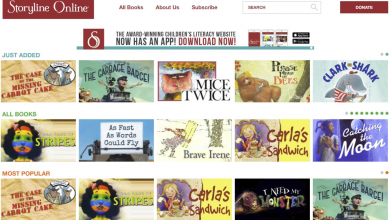
Storyline Online features videos from members of the Screen Actors Guild Foundation reading aloud children’s books. Each book has activities and lesson ideas associated with it. Some of the more recognisable names reading books are…

  • Betty White
  • Jason Alexander
  • Elijah Wood
  • Lou Diamond Phillips
  • Al Gore

The books that are available are listed below.

http://www.storylineonline.net/

Toontastic

0
FacebookTwitterEvernotePinterestInstapaperRead It LaterBookmark/FavoritesGoogle ReaderShare

Toontastic is a fantastic cartoon creation tool on your iPad. This is a very accessible tool that can be used by children as young as five and be enjoyed just as much by big kids such as myself. Toontastic’s interface is separated into 5 easy steps to create your own cartoon.

Step 1: Story Arc

In the Story Arc you develop your story structure. This is a great aspect of toontastic and really introduces the concept of how a good narrative story should be structured. You start with the ‘setup’ where you introduce your characters and the story setting. Then the ‘conflict’ where you create a problem for your main character. The next aspect is the ‘challenge’, where you can if you choose to make the problem even more difficult. Then comes the ‘Climax’ and ‘Resolution’. All of these scenes are interchangeable and you can add more scenes if you wish.

Step 2: Setting

Once you have chosen a scene to edit from the ‘Story Arc’, it is time to choose a setting for that scene. There are a few standard settings to choose from or you can draw your own scenes. You can also purchase more play sets that includes scenes and characters.

Step 3: Characters

After you have chosen your setting you then need to pick your characters. Again you can choose from the characters that come with the app or draw your own. You can also purchase more by getting a play set via an in app purchase.

Step 4: Animation

This is the most exciting bit, animating your characters and giving them a voice. First you can place your characters where you would like them to start within your scene. You then press the ‘Start Animation’ button and go about moving your characters around narrating your story or speaking for your characters to tell the story. When you’ve finished click ‘Stop Animation’. Then move onto your next scene.

Step 5: Music

After animating your scene you a brought to the ‘Music’ section. Here you choose an appropriate emotion that coveys the essence of your scene. You then need to decide on the degree of that emotion to convey. This will determine the strength of music that will appear in each scene.

Once you have finished with your cartoon you can sit back and enjoy what you have created. Cartoons can be shared on ‘Toontube’  once you have created an account. An email will be sent to the parent’s account for approval of a cartoon before it can be viewed online.

I can see ‘Toontastic’ being used successfully in a classroom to assist students with developing their narrative story telling skills. This app could greatly assist reluctant writers or those students needing to build their vocabulary in describing a story.

Below is a promotional video from Launchpad toys the creators of Toontastic.

Toontastic from Thushan Amarasiriwardena on Vimeo.


iTunes link: http://itunes.apple.com/us/app/toontastic/id404693282

Go to Top